// Troubleshooting · Tracking
Is your Meta pixel actually firing on Shopify?
Last updated 28 September 2026.
Open your store in a private window with the Meta Pixel Helper installed — or with Events Manager → Test events open — and walk one product into the cart: within two minutes you should see PageView, ViewContent and AddToCart carrying your pixel ID, then InitiateCheckout when you click Checkout. A pixel that shows PageView and nothing when you act is loaded but not wired to the buy path — the usual state after a theme change, an app removal, or a move from a theme-pasted snippet to the Facebook & Instagram app. Purchase can only be proven with a real order: place one, then look for it in Test events.
A pixel that has gone quiet is expensive in a way an outage isn't: the store keeps selling, and the ad platform loses the signal it optimises on. The campaigns drift, the reported return falls, and the merchant's first instinct is to blame the ads. The fix starts with two minutes of looking at what the pixel actually sends.
The two-minute check
- Install the Meta Pixel Helper (a Chrome extension) — or open Events Manager, pick your pixel, and open Test events with your store's URL.
- Open your store in a private window so no consent choice or cache from earlier visits gets in the way; accept cookies if your consent banner asks.
- Land on the homepage → you should see
PageViewwith your pixel id. - Open a product →
ViewContent, carrying the product id (content_ids) and price. - Add it to the cart →
AddToCart, same product id. - Click Checkout →
InitiateCheckouton Shopify's information step.
Each event should appear once. If any step is missing, note which — the reasons below are sorted by step. If every event appears twice, you have two installs (a theme snippet and the app both firing); that inflates every number and is fixed by removing the theme copy.
What each event should look like on Shopify
With the Facebook & Instagram app connected, Shopify sends the standard events through its pixel sandbox (Shopify Help Center: Pixels); a custom pixel you wrote yourself uses the same customer events. Either way, this is the map:
PageView— every page.ViewContent— a product page, withcontent_ids,content_type,valueandcurrency.AddToCart— the add-to-cart click, same fields.InitiateCheckout— the moment the checkout's information step opens.AddPaymentInfo— payment details entered.Purchase— the thank-you page only, withvalue,currencyand the order's contents.
Read the request yourself
The Pixel Helper is convenient, but the truth is in the browser's Network tab: press F12, open Network, filter for tr/?, and act on the store. Every pixel event is one request to facebook.com/tr whose query string carries the pixel id (id), the event (ev), the page (dl) and the payload (cd[…]). Copy one and paste it into the decoder beside the answer — it prints the fields in plain language and says which step of the buy path the event belongs to.
A Meta pixel that shows PageView and nothing else when a shopper adds to cart is loaded but not wired to the buy path — the usual aftermath of a theme change, an app removal, or moving from a pasted snippet to the Facebook & Instagram app.
The four reasons a pixel goes quiet
- The snippet left with the theme. A pixel pasted into
theme.liquiddisappears when the theme is replaced or updated from a fresh copy. Signature: no events at all. Fix: connect the Facebook & Instagram app instead of pasting code — the app survives theme changes. - Two installs, or half of one. A theme snippet and the app both firing doubles PageView; a snippet that only fires PageView while the app is disconnected leaves the buy path dark. Signature: duplicates, or PageView-only. Fix: one install — the app — and remove the theme copy.
- Consent is holding it. A consent manager can legitimately silence the pixel until the visitor accepts. Signature: events appear only after you click accept. That's correct behaviour — but check that the "accept" path actually releases the events, and that your consent tool isn't blocking them for everyone.
- The app is disconnected or pointed at the wrong pixel. A changed Business Manager, an expired permission, or a pixel id that doesn't match Events Manager. Signature: events fire, but under a pixel id you don't recognise, or nothing reaches Events Manager. Fix: reconnect the app and confirm the id in the decoder matches the one in Events Manager.
Purchase is different
Every event above can be checked without spending a cent. Purchase can't: it fires on the thank-you page, after payment, and the only way to see it is to place an order. Use a 100%-off discount code or Shopify's test payment gateway, keep Test events open, complete the order, and look for Purchase with the right value and currency. If the buy-path events fire and Purchase alone is missing, the fault is on the thank-you page — which is also where legacy script tags stopped running. The GA4 version of this problem has the same shape.
Every Meta pixel event except Purchase can be verified from a private window in two minutes; Purchase fires on the thank-you page after payment and can only be proven with a real order.
Frequently asked questions
How do I know if my Meta pixel is firing on Shopify?
Why does my pixel show PageView but no AddToCart?
Why are my Meta events firing twice?
Can a monitor verify my Purchase event?
Keep reading: GA4 purchase event missing? · Shopify's script sunset — is your tracking silently broken? · Free Tracking Health Check · The Money check
// Per step, every night
Is your tracking
firing tonight?
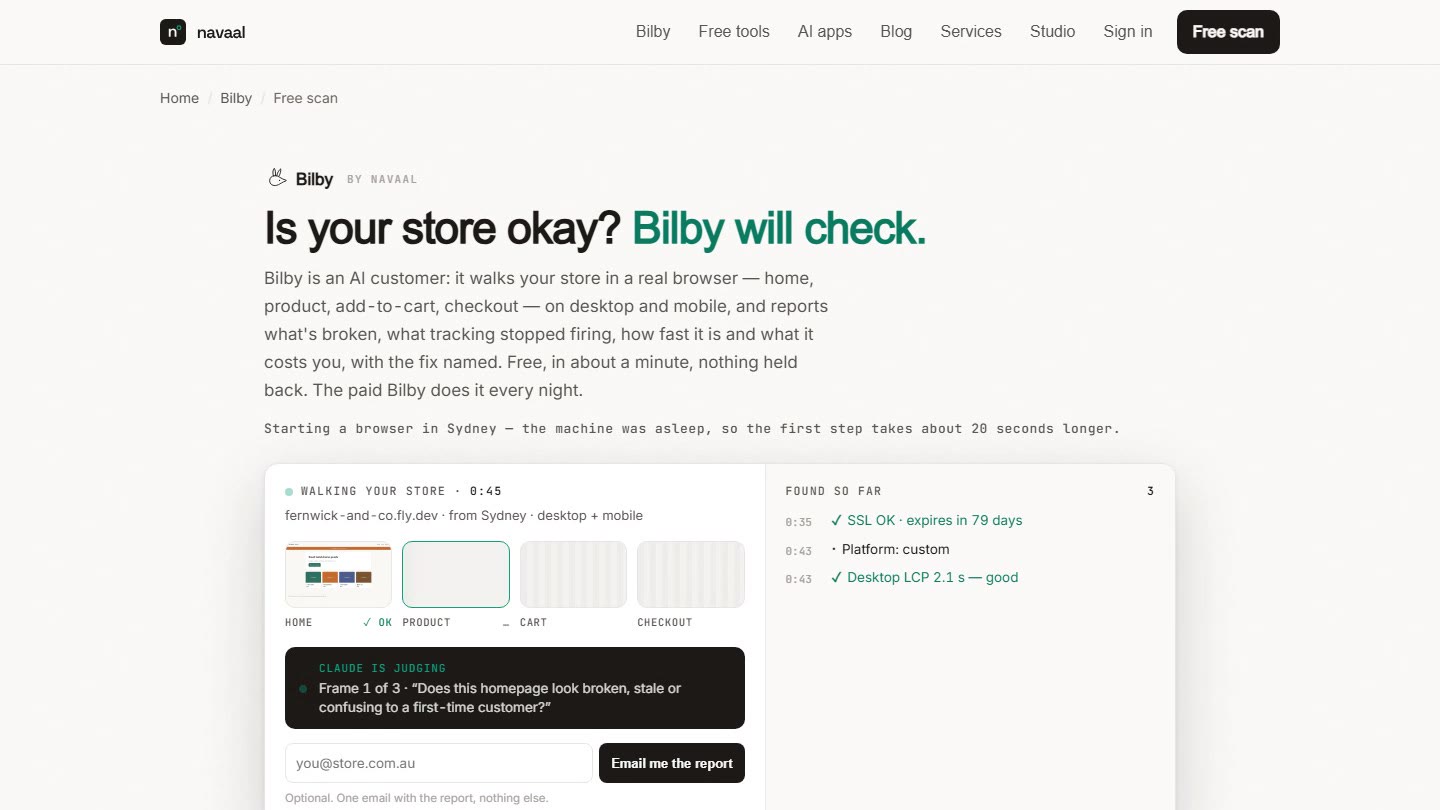
Bilby reads the network log of a real visit and records which events each platform sent on every step — then tells you the night one goes silent. One free scan, no signup.
Thin or missing product content is the other half of this problem, and it is the half search engines and AI assistants see. Navaal: AI SEO, AEO & GEO audits a Shopify catalogue for it free, and writes what is missing for review.