// Troubleshooting · Tracking
Why is your GA4 purchase event missing on Shopify?
Last updated 28 September 2026.
Because purchase is the one event that fires on the thank-you page, after payment — a page your theme doesn't control — so it breaks in ways the rest of your tag doesn't: a GA4 tag pasted into theme.liquid never runs there, a legacy script tag that used to run there has been sunset, and the Google & YouTube app or a custom pixel only sends purchase when it's connected to the right measurement ID. The proof is a count: yesterday's orders in Shopify against yesterday's purchase events in GA4 — a small gap is consent and blockers, a large or total gap is a missing event. Then place a test order with DebugView open and watch for purchase with a transaction_id.
Every other GA4 event on a store is easy to check: open the page, do the thing, watch it appear. Purchase is the exception. It lives on the one page you can't reach without paying, it's the event ad bidding and revenue reports depend on, and when it goes missing the store looks fine everywhere else. That's why it deserves its own checklist.
Why purchase is the fragile one
Shopify's storefront pages belong to your theme; the checkout and the thank-you page belong to Shopify. A GA4 tag installed in the theme runs on product and cart pages and fires view_item, add_to_cart and even begin_checkout — and then never sees the thank-you page. For purchase to fire, something has to run there: the Google & YouTube app, a custom pixel built on Shopify's customer events (Shopify Help Center: Pixels), or — until Shopify sunset them — a legacy script tag on the order-status page. If your purchase tracking was built on that last one, it stopped, and nothing on your storefront looks any different.
A GA4 tag pasted into a Shopify theme can fire view_item, add_to_cart and begin_checkout and still never send a purchase — because the thank-you page belongs to Shopify, not the theme, and only the Google & YouTube app or a custom pixel runs there.
The 2026 checklist
- Count first. Yesterday's orders in Shopify against yesterday's
purchaseevents in GA4 (Reports → Monetization → Ecommerce purchases). Put both into the gap check beside the answer. A small gap is normal; a large or total one is the problem, and the size tells you which kind. - Know your install. Which of these sends purchase for you: the Google & YouTube app, a custom pixel, or a tag in the theme? If the answer is "the theme", that's the fault — the theme never sees the thank-you page.
- Match the measurement ID. The
G-ID in the app or pixel must be the one on the GA4 property you're reading. Two properties, two IDs, and purchase lands in the one you're not looking at. - Remove theme-pasted purchase code. Old order-status-page scripts and
theme.liquidsnippets that reference purchase are dead weight at best and duplicates at worst. Our app-code scanner lists every script the storefront still loads. - Place a test order with DebugView open. Enable debug mode for your browser (Tag Assistant does it), open DebugView, and complete an order with a 100%-off code or Shopify's test gateway. Watch for
purchaseon the thank-you page. - Check the event's fields. GA4's recommended purchase event carries
transaction_id,value,currencyanditems. A purchase with notransaction_idcan't be de-duplicated; one with novaluereports zero revenue. - Visit the consent path. Complete the test order twice — once accepting cookies, once rejecting. Rejecting should reduce what GA4 receives; it should not remove purchase for the customers who accepted. If accepting still yields nothing, the consent tool is blocking the pixel outright.
- Hunt duplicates. More purchases than orders means two installs. Keep one — the app or the custom pixel — and remove the other.
How to read the gap
A gap of a few percent is the world being the world: visitors who declined tracking, browsers that block it, the odd order placed in a way the pixel never saw. A gap in the tens of percent is a pixel that fires on some paths and not others — the classic case is an express checkout (Shop Pay, PayPal, Apple Pay) or a draft order that skips the page the pixel expects. A gap near everything is a missing event, and a negative gap — more purchases than orders — is a double install. The thresholds in the gap check are our rule of thumb; they're printed so you can disagree with them.
The two-minute proof that GA4 purchase tracking works is a count, not a tag inspector: yesterday's Shopify orders against yesterday's GA4 purchase events, on the same day, with the gap read in tens of percent.
Frequently asked questions
Why is GA4 not recording purchases from my Shopify store?
How do I test the GA4 purchase event on Shopify?
purchase on the thank-you page with a transaction_id, value, currency and items.GA4 shows more purchases than Shopify orders. Why?
Can a monitor verify my GA4 purchase event?
Keep reading: Meta pixel not firing? · Shopify's script sunset — is your tracking silently broken? · Free Tracking Health Check · The Money check
// Per step, every night
Is your tracking
firing tonight?
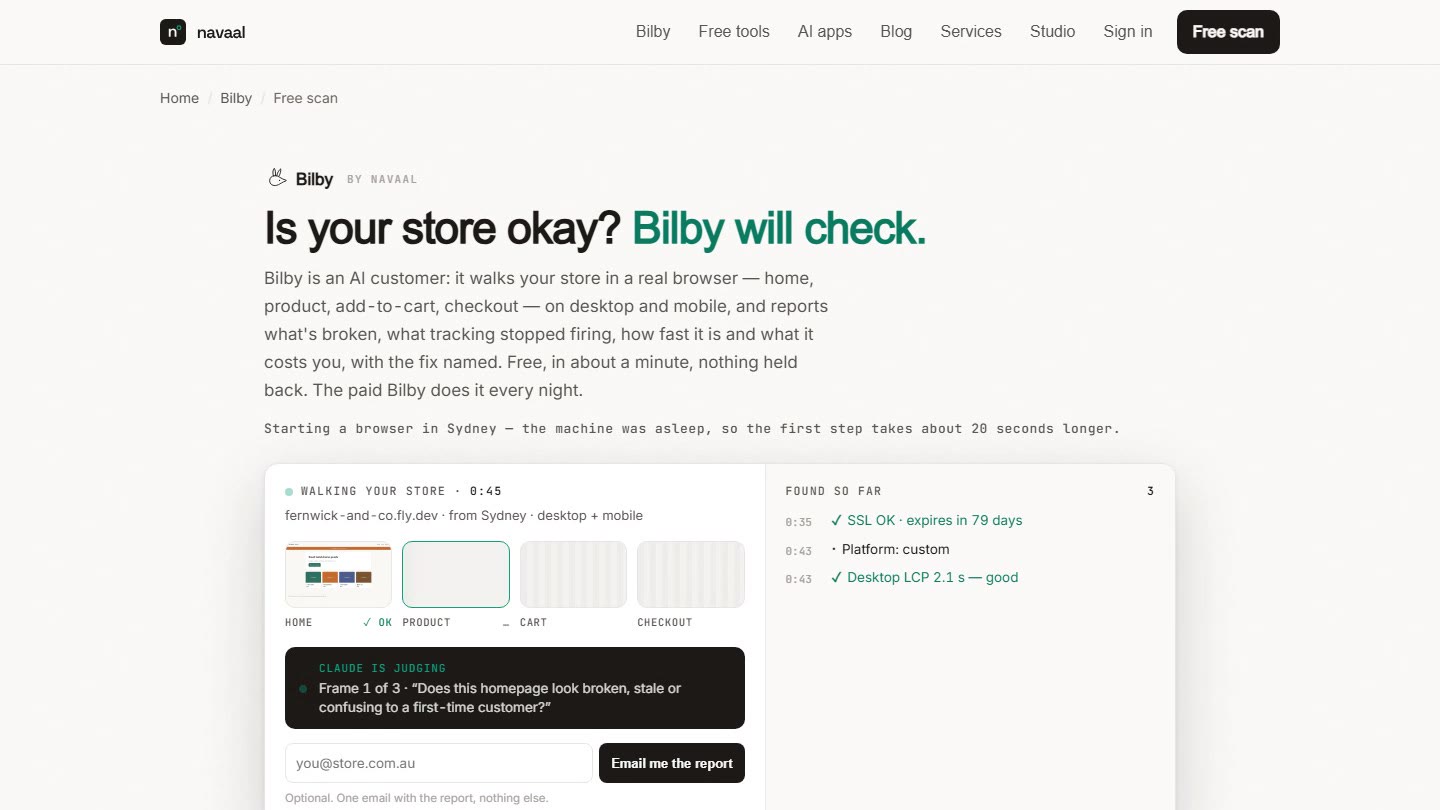
Bilby reads the network log of a real visit and records which GA4 events fired on every step — then tells you the night one goes silent. One free scan, no signup.
Thin or missing product content is the other half of this problem, and it is the half search engines and AI assistants see. Navaal: AI SEO, AEO & GEO audits a Shopify catalogue for it free, and writes what is missing for review.