// Troubleshooting · Checkout
Did a theme update break your Shopify checkout?
Last updated 28 September 2026.
A theme update can't edit Shopify's checkout pages, but it can break the path to them — the cart page, the cart drawer, the Checkout button, or a script on the way. The signature is a conversion drop with steady traffic that starts the day of the update: adds-to-cart continue, checkouts-started fall. The only proof is a real visit on the live theme — incognito, on a phone, product → cart → Checkout to the payment step — now, and after every future change.
A theme update cannot edit Shopify's checkout pages — but it can silently break the path to them: the cart page, the cart drawer, the Checkout button, or a script on the way.
Theme updates are necessary — for speed, features and security — but they touch the exact templates a customer passes through on the way to paying. When one breaks the cart or the Checkout button, the store keeps taking traffic and adding items to carts, and the orders quietly stop. Because Shopify's own checkout is untouched, the dashboard looks normal at a glance. Here is how to tell whether your last update did damage.
What can a theme update actually break?
Shopify serves the checkout itself — the information, shipping and payment steps — from its own system; a theme can't alter those pages. What a theme does control, and can break, is everything up to that point:
- The cart page and cart drawer — where quantities, totals and the Checkout button live.
- The Checkout button itself — its markup, its link, and any JavaScript attached to it.
- Scripts that run on the cart — discount fields, shipping estimators, upsell apps embedded in the theme.
If any of these fail, the customer can't reach the checkout Shopify built — and the result is identical to a broken checkout: no sale.
Which signals in your data show checkout broke?
You can spot a broken path in analytics before a single customer emails you:
- Conversion rate drops while sessions hold steady. Same traffic, fewer orders, starting the day of the update — the clearest signal.
- "Reached checkout" falls behind "added to cart". In Shopify's analytics or GA4, a widening gap between these two events means people are getting stuck at the cart.
- Cart-page exit rate rises. Customers landing on the cart and leaving without proceeding.
- Support messages like "the checkout button doesn't work" or "I couldn't pay" — take even one seriously.
What is the definitive test, end to end?
Data hints; a visit confirms. Do this after every theme change:
- Open your live store in an incognito window — not a theme preview, which can differ from what customers get.
- Add a product to the cart, then open the cart page or drawer.
- Click Checkout and confirm Shopify's information step actually loads.
- Continue to the payment step. You don't need to pay — nearly all theme-caused breakage lives before payment. To go further, use a 100%-off discount code or Shopify's test payment gateway.
- Repeat on a phone. The cart drawer is where mobile breaks, and a resized desktop window doesn't reproduce it.
If the Checkout button does nothing, open the browser console (F12) on the cart page and look for a red JavaScript error — it usually names the file or app at fault.
Should I roll back first, or fix forward?
If the visit fails and the failure started with the update, publish the theme you had before — which is why the habit that matters is duplicating the theme before every update, so a known-good copy is one click away. Shopify's code editor also keeps older versions of each theme file, so a single edited file can be restored without republishing the whole theme. Confirm the rollback fixes the visit, then apply the update again on a duplicate and test that copy before publishing.
Why isn't testing it once enough?
A visit proves the path works today. The next theme update, the next app install, the next third-party script change can break it again — and you won't be visiting at that exact moment. The stores that never lose a quiet week to a broken cart are the ones that check the full path continuously, not once. That's what the nightly store check is for.
The reliable signature of a broken checkout path is a conversion-rate drop with steady traffic — the customers still arrive; they just stop getting through.
Frequently asked questions
Can a theme update break my Shopify checkout?
What are the signs my checkout broke after an update?
How do I test my checkout after a theme update?
How can I catch a broken checkout path automatically?
Keep reading: How often should you test your checkout? · Checkout is blank or white? · Add-to-cart not working? · The Change check
// Never lose a quiet week again
Watch the path
to checkout.
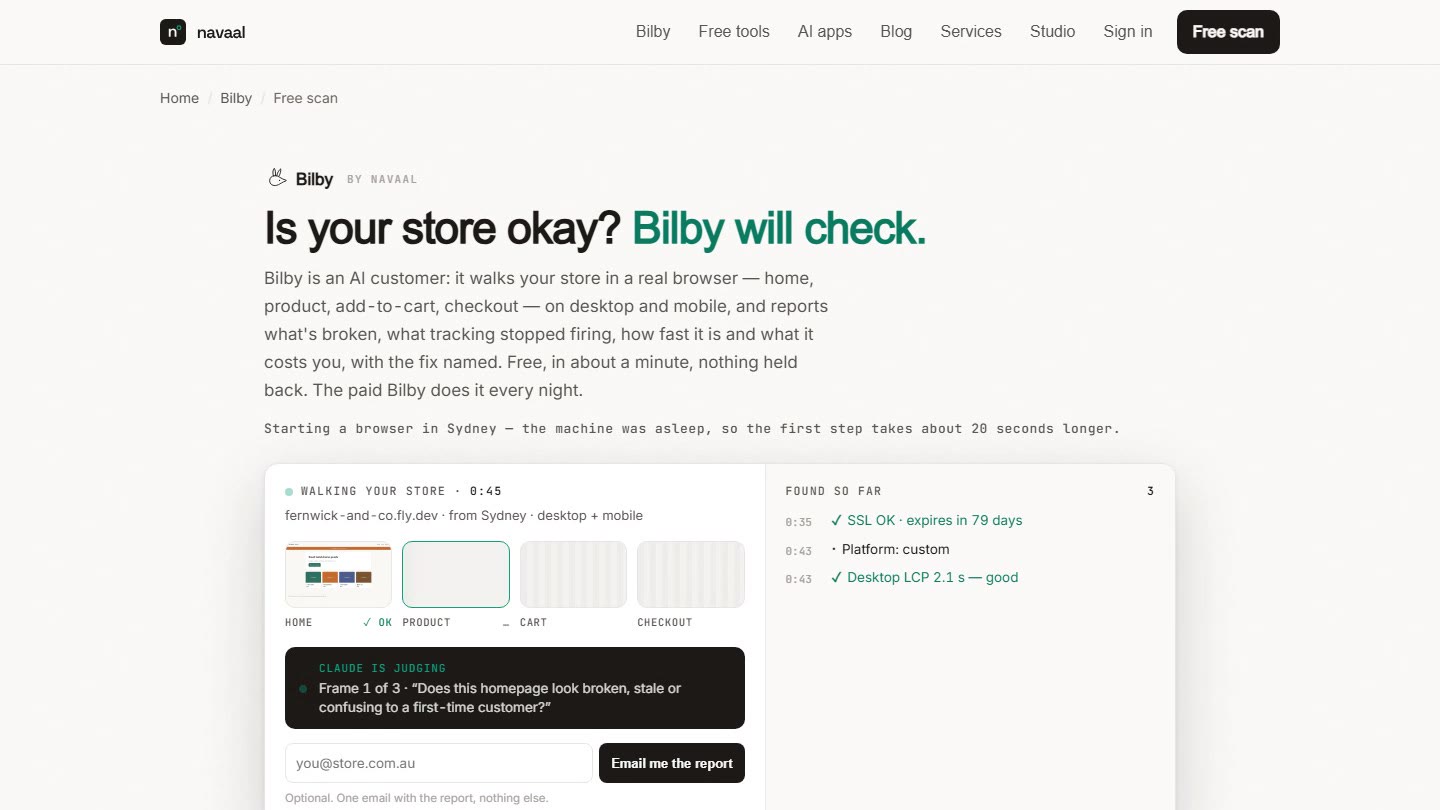
Bilby visits add-to-cart to checkout every night, diffs your theme and scripts against last night, and screenshots anything broken. One free scan, no signup.
Thin or missing product content is the other half of this problem, and it is the half search engines and AI assistants see. Navaal: AI SEO, AEO & GEO audits a Shopify catalogue for it free, and writes what is missing for review.